Members
(constant) Use custom property
Scenario: A custom component contains a button component and a text input component. Customize the relative position of the text component to the button component.
Solution: Using the custom property of AppStudio, can dynamically define the component's layout on a per-project basis, without any modifications to the component itself.
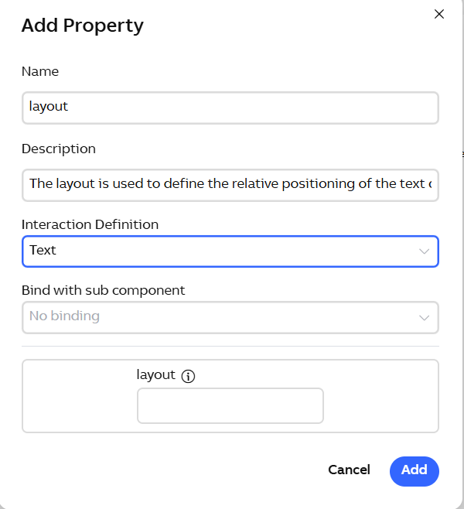
- In Component Designer, create a custom property for the custom component. Create a custom property in the Component Designer. This property is used to define the relative positioning of the button component to the text component, allowing for flexible layout adjustments based on the property value.
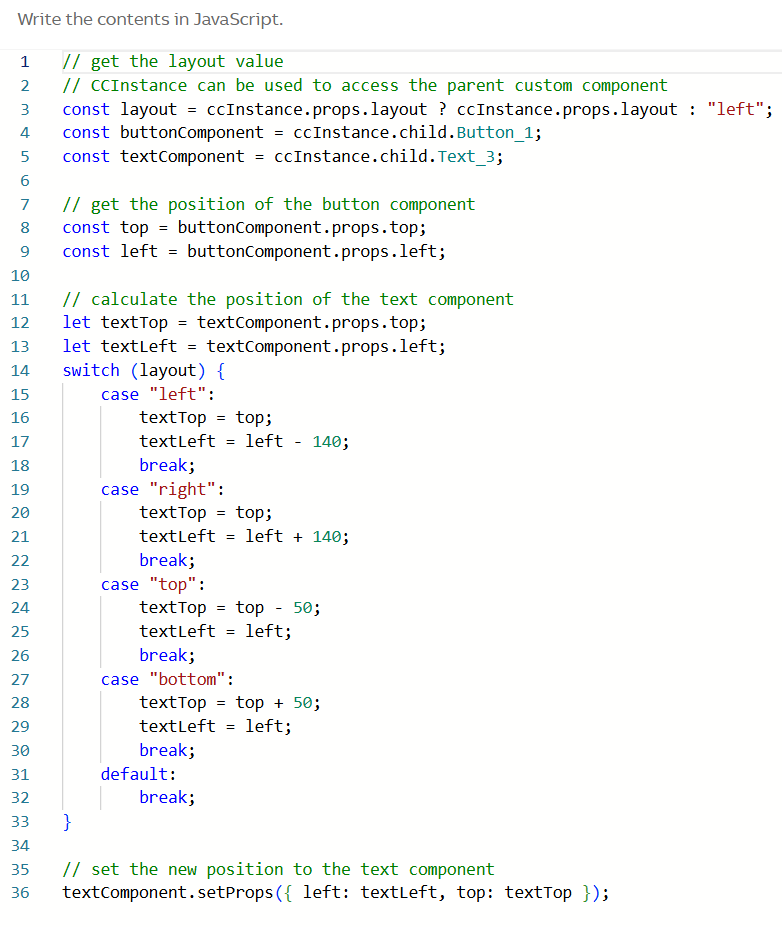
- In Component Designer, deliver code to use the custom property. Edit the onClick event for the button component. When the button is clicked, the layout of the custom component will update according to the specified value of the custom property.
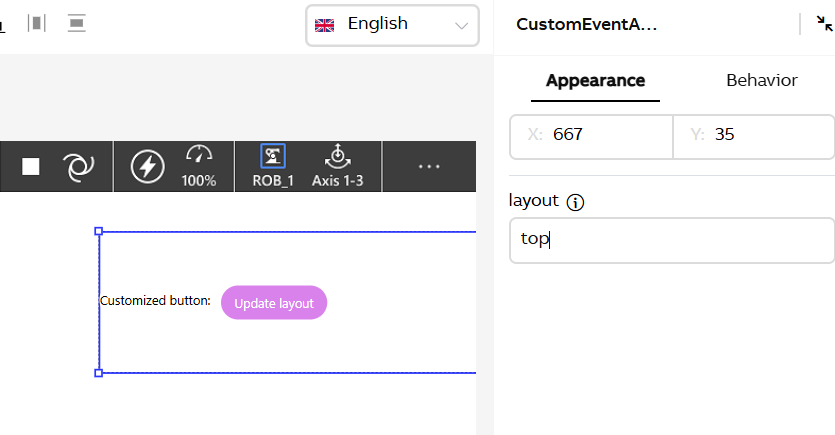
- In Webapp Designer, assign value to the custom layout property Set the layout value to 'top', which indicates that when the button component is clicked, the text component will be at the top of the button component. You can also write code to update the layout value. Following is an example.
Instance.CustomEventAndProp_mc07fuw6_okkzd_Component1_1.layout = "top"
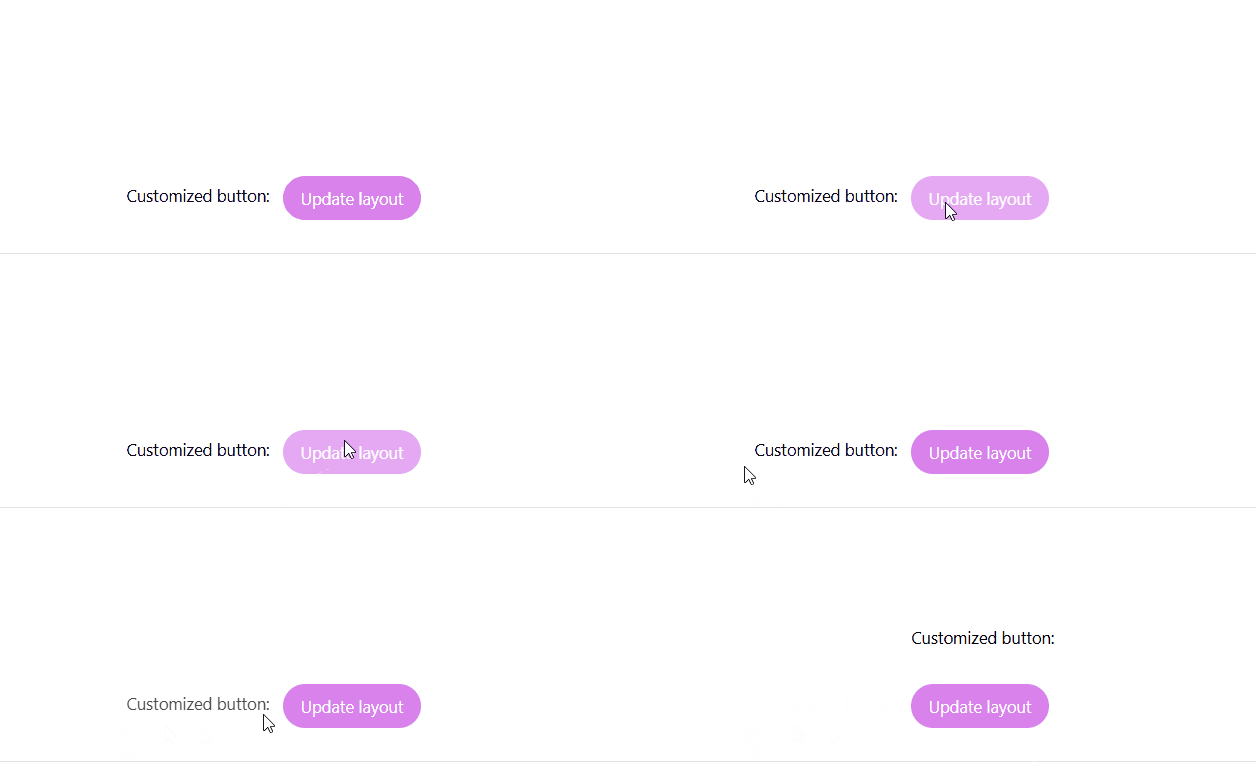
- Demonstration. This demonstration shows how the custom property affects the component layout. When the button is clicked, the text component's position changes based on the custom property value, showcasing the dynamic layout capabilities of the custom component.